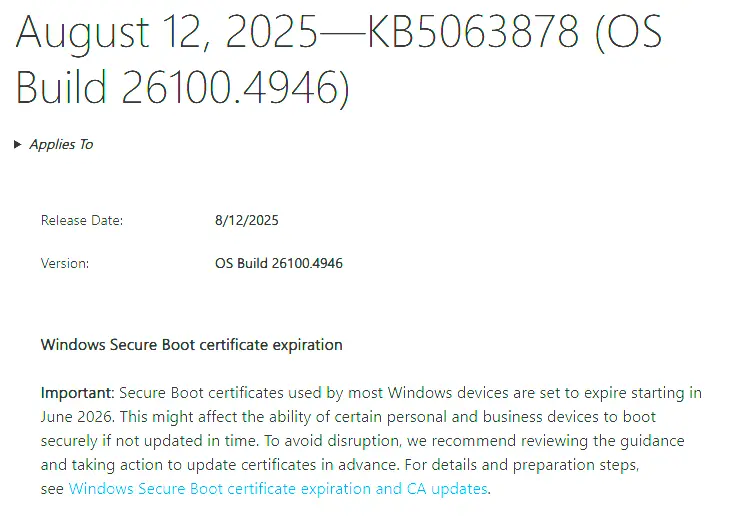
Microsoft released update KB5063878 on August 12, 2025, and like many cumulative updates, it brought along a mix of bug fixes and… unfortunately, new issues for some users. Reports have surfaced of system instability, application crashes, and even performance slowdowns after installing this patch.
If you’ve experienced these issues, you’re not alone. My approach has always been to control Windows Updates manually so that my system stays stable and only receives patches when I decide it’s time. In this article, I’ll walk you through the steps I use to manage Windows Updates safely.
The Problem with KB5063878
-
Some users report crashes in daily applications right after installation.
-
Performance issues like freezing, slower boot times, or high CPU usage are common.
-
We have also observed compatibility glitches with third-party software.
While Microsoft usually rolls out a hotfix in the following weeks, waiting around with a broken system is not an option.
My Two Options for Windows Updates
When it comes to updates like KB5063878, I choose between two strategies:
-
Disable Updates Completely – The system won’t download or install anything until I manually re-enable it.
-
Set Updates to Manual – This lets me control when an update is triggered, but Windows can sometimes still sneak in updates through other scheduled tasks.
Step 1: Disabling Windows Update Service (My Preferred Method)
This method ensures updates won’t install automatically.
-
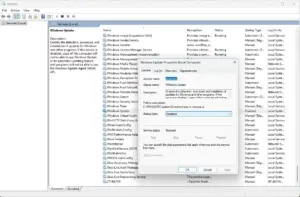
Press Win + R, type
services.msc, and press Enter. -
In the Services window, scroll down and find Windows Update.
-
Right-click and select Properties.
-
Under Startup type, choose Disabled.
-
Click Stop to immediately halt the service.
-
Click OK to save the changes.
At this point, Windows will no longer check for updates on its own. You’re in control.
Step 2: Using Manual Mode (Alternative Option)
If you prefer to keep Windows Updates available but not automatic:
-
Repeat the steps above to open Windows Update in
services.msc. -
Under Startup type, choose Manual instead of Disabled.
-
Click Stop if it’s already running, then OK to apply.
⚠️ Note: Even in Manual mode, other system tasks may occasionally trigger updates. That’s why I personally stick with full disable until I schedule maintenance.
My Personal Approach
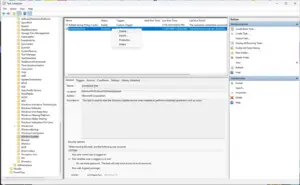
I keep Windows Updates disabled by default. Then, during scheduled maintenance—or if a program specifically requests the latest patches—I enable the service, run updates, and disable it again once I’m done.
This routine has saved me from countless issues like the ones we’re seeing with KB5063878. Instead of reacting to a broken system, I stay proactive and in control.
Final Thoughts
Windows Updates are necessary for security and stability, but not every update plays nicely. KB5063878 is a good reminder that sometimes the best solution is selective updating—install patches when you’re ready, not when Microsoft forces them.
If your system is running smoothly and you don’t urgently need the latest patch, consider holding off until Microsoft confirms the problems with this update are resolved.