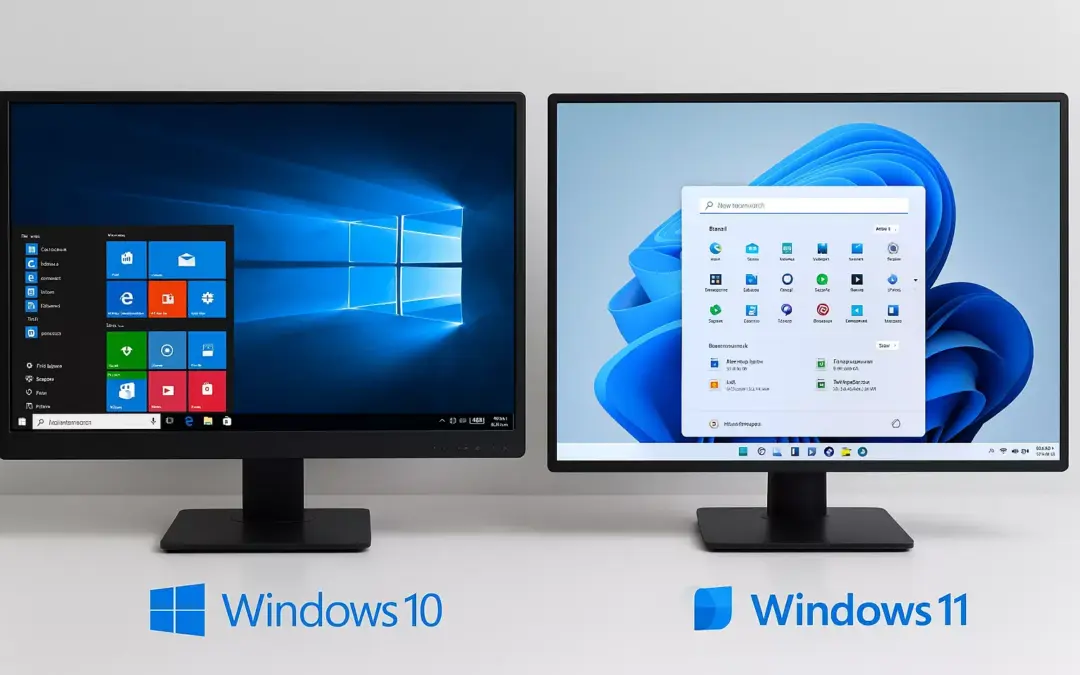
What to Do If Your PC Can’t Upgrade to Windows 11
Windows 11 has been out for a while now, and many users have already made the switch. But what if your current computer doesn’t meet the system requirements? Don’t worry, you’re not alone, and you still have solid options to keep your system running securely and efficiently.
Not All Computers Can Upgrade… and That’s Okay
Microsoft introduced some strict requirements for Windows 11, including TPM 2.0, Secure Boot, and newer CPUs. This has left many users, especially those with older yet fully functional PCs, stuck on Windows 10.
But here’s the good news: Windows 10 is still a solid, stable system and will continue to receive security updates through October 14, 2025. In fact, millions of users around the world still run older versions of Windows without issue, especially in work environments where the software is cloud-based or accessed via remote desktop tools.
Option 1: Stick with Windows 10 (For Now)
If your computer runs well and your apps are working fine, you can safely continue using Windows 10. Just make sure:
- You’re using original and licensed software.
- Your Windows 10 installation is up-to-date with the latest compatible version.
- You have automatic updates disabled or monitored (especially in business environments) to prevent unexpected changes to drivers or settings.
Pro Tip: Most IT professionals test updates on non-critical devices first before rolling them out company-wide. This helps avoid compatibility issues that could impact daily operations.
Option 2: Bypass the Requirements (With Caution)
There are ways to install Windows 11 on unsupported hardware using tools like FlyOOBE, which bypass the system checks during installation. This method can work, but it comes with a few caveats:
- It’s not officially supported by Microsoft, which could cause issues later.
- You’ll need someone with technical experience to perform the installation.
- Some features might not work properly, or drivers might be hard to find.
In short: Only go down this route if you know what you’re doing or have someone qualified helping you, and always back up your data first.
Option 3: Explore Alternatives (Maybe It’s Time for a Change?)
If your system is starting to feel slow or outdated, it might be a good time to explore alternatives:
- Cloud-based software (SaaS) can replace traditional apps, reducing your need for local storage and high system specs.
- Consider moving certain workflows to Chromebooks, Linux systems, or low-cost virtual desktops, depending on your use case.
- If you need a new system but have a tight budget, look for refurbished devices that meet the Windows 11 specs, or consider devices optimized for cloud and remote work.
Before You Do Anything: Protect Your Files
Regardless of which path you take, the most important step is this:
Make a copy of your files. Save them to the cloud and/or an external drive.
If something goes wrong during a system upgrade or a bypass installation, the last thing you want is to lose important documents, photos, or business data.
You can use tools like
- OneDrive, Google Drive, or Dropbox for cloud backups.
- For local physical backups, utilize external SSDs or USB drives.
And don’t forget to create a list of the software you currently use. Knowing what apps you rely on (especially licensed or work-related tools) will help you:
- Check compatibility with future updates
- Identify alternatives if a program is no longer supported
- Plan migrations or upgrades with minimal disruption
Quick Checklist
✅ Back up your data (Cloud + External Drive)
✅ Disable automatic updates (optional, for stability)
✅ Make a list of your essential software
✅ Check if your apps are cloud-based or device-dependent
✅ Explore alternatives before buying a new computer
✅ Only try bypass methods with professional help
✅ Use original software and apply security patches
You’re Still in Control
The move to Windows 11 doesn’t mean you need to throw away your current setup. Whether you continue with Windows 10, bypass restrictions, or switch to alternative tools, what matters most is using secure, updated software and backing up your data regularly.
And don’t worry, Microsoft is already planning future versions of Windows that may work better with older systems or provide new paths to upgrade. Until then, stay informed, stay secure, and use the tools that work best for you.